Walk through the real platform, one screen at a time.
Every picture in this tour is a screen from the platform itself, taken in a practice workspace with made-up names and content. Press a number on a screen to see what that part does, or ask the tour assistant.
The tour
Screens captured on 13 November 2026 from a test workspace that was deleted afterwards. The person, the business and the sample company on them are made up.
-
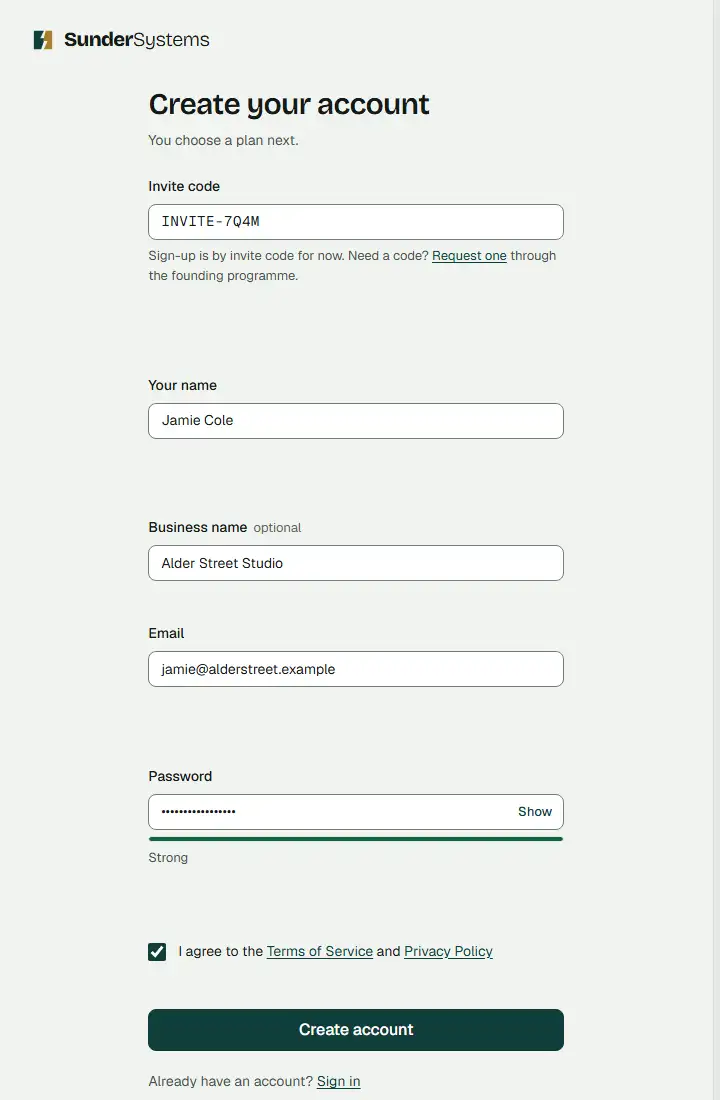
Register with your invite code
Sign-up is by invite code until payments open. You enter the code, your name, an optional business name, your email and a password, then agree to the terms.
- Invite code. Required for now. The line under it says how to get one.
- Your email. This is how you sign in. You confirm it from a link we send.
- Terms. You agree to the Terms of Service and the Privacy Policy before the account is made.
- Create account. Makes the account. You choose a plan next.
Questions about this step
Where do I get an invite code?
Request an invite on this site and we email you a code. Sign-up stays invite-only until payments open.
What happens after I register?
You choose a plan, then answer five short setup questions. Your workspace starts on a practice company, so nothing reaches real people while you learn.
-
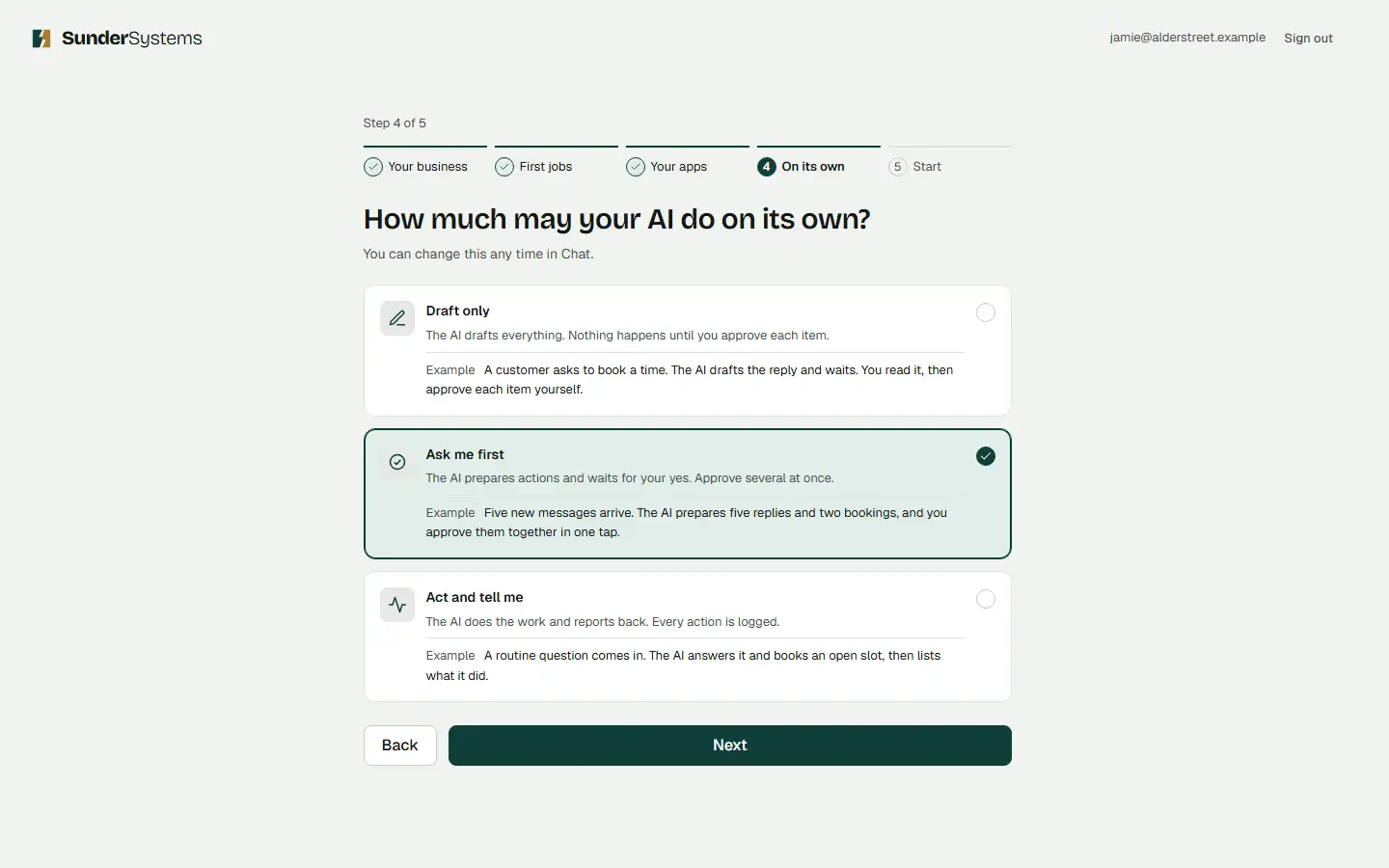
Answer five setup questions
Five short steps: your business, the first jobs for your AI, the apps you use, how much it may do on its own, and a practice company to start on. Answers are saved as you go.
- Five steps. Your business, first jobs, your apps, how much it may do on its own, and a review. Finished steps show a tick.
- Draft only. Your AI drafts everything; nothing happens until you approve each item.
- Ask me first. It prepares actions and waits for your yes. You can approve several at once.
- Act and tell me. It does the work and reports back. Every action is logged.
- Next. Goes on to the review, where you pick the practice company.
Questions about this step
What does "Ask me first" mean?
Your AI prepares the reply, post or booking and waits. With this setting, nothing goes out until you approve it. You can change this setting at any time in Chat.
What is the practice company?
A made-up company with its own inbox, calendar and social pages. In this tour it is Juniper & Vale, which sells office services. Your AI practises on it first, so nothing reaches real people.
-
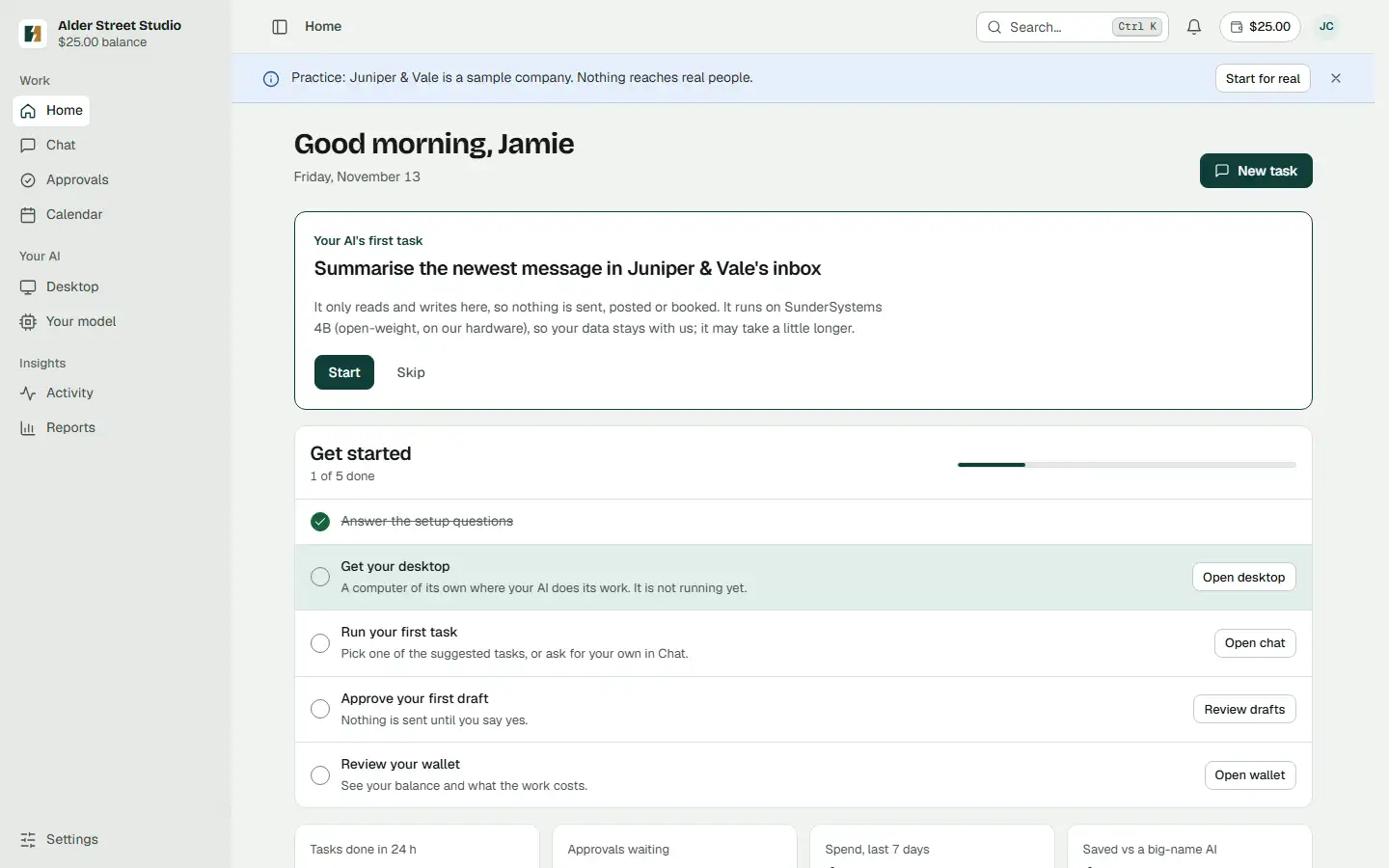
Home: your first task is one click away
Home greets you and suggests a first task for the practice company, saying what it will and will not do. A banner reminds you that you are in a practice workspace.
- Practice banner. You are working on Juniper & Vale, a sample company. Nothing reaches real people.
- Your first task. Press Start and watch it work. The card says what it will not do: it only reads and writes here, so nothing is sent, posted or booked.
- Chat. Ask for anything else in your own words.
- Wallet balance. Always in view at the top. The work your AI does is paid from it.
Questions about this step
Where does a task run before my desktop is ready?
With your workspace tools. The card on this screen says so: there is no running desktop yet, so the task uses the workspace tools instead.
Can I try it without touching real customers?
Yes. A new workspace practises on a made-up company first. Its emails, posts and bookings stay inside the practice workspace.
-
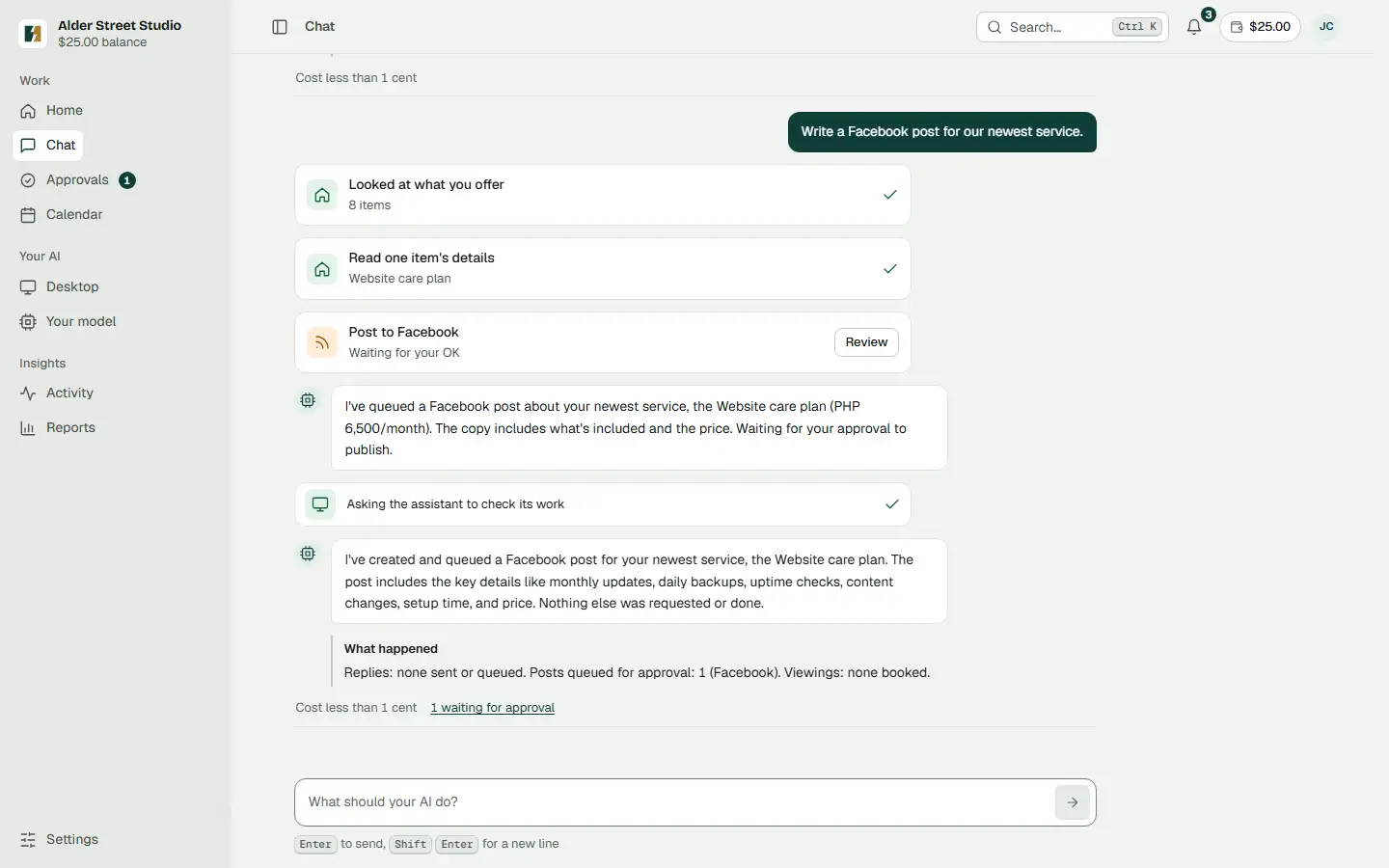
Give your AI a task and watch each step
You ask in plain words. Each step your AI takes shows up as it happens, with a tick when it is done, and the cost of the task is shown at the end.
- Your request. Written the way you would ask a colleague.
- Step one. It looked at what the company offers: eight items.
- Step two. It read the details of the newest one before writing.
- Waiting for your OK. The post is queued in Approvals. Nothing is posted until you say yes.
- Message box. Ask a follow-up, or a new task.
Questions about this step
Which model does the work?
In the web app, chat and tasks in a new workspace start on a larger open-weight model through OpenRouter. They run on the untuned 4B model on our hardware instead when that route is not available, when the wallet holds no real money or when the plan’s monthly model cap is reached. The AI desktop agent runs on the 4B model on our hardware, or on your own model once one is delivered. A workspace that turns training on moves to its own model once it is trained. Requests sent through OpenRouter leave our hardware and go to OpenRouter and the provider it routes to. It gets a trained model of its own, run on our hardware, only if you switch training on and enough of your approved work has been collected. No client's own model is live yet.
What did this task cost?
The screens in this tour show less than 1 cent for it. Every task's cost comes out of your wallet.
Will it post without asking me?
Not with "Ask me first". Anything that sends, posts or books waits in Approvals. That is the next step.
-
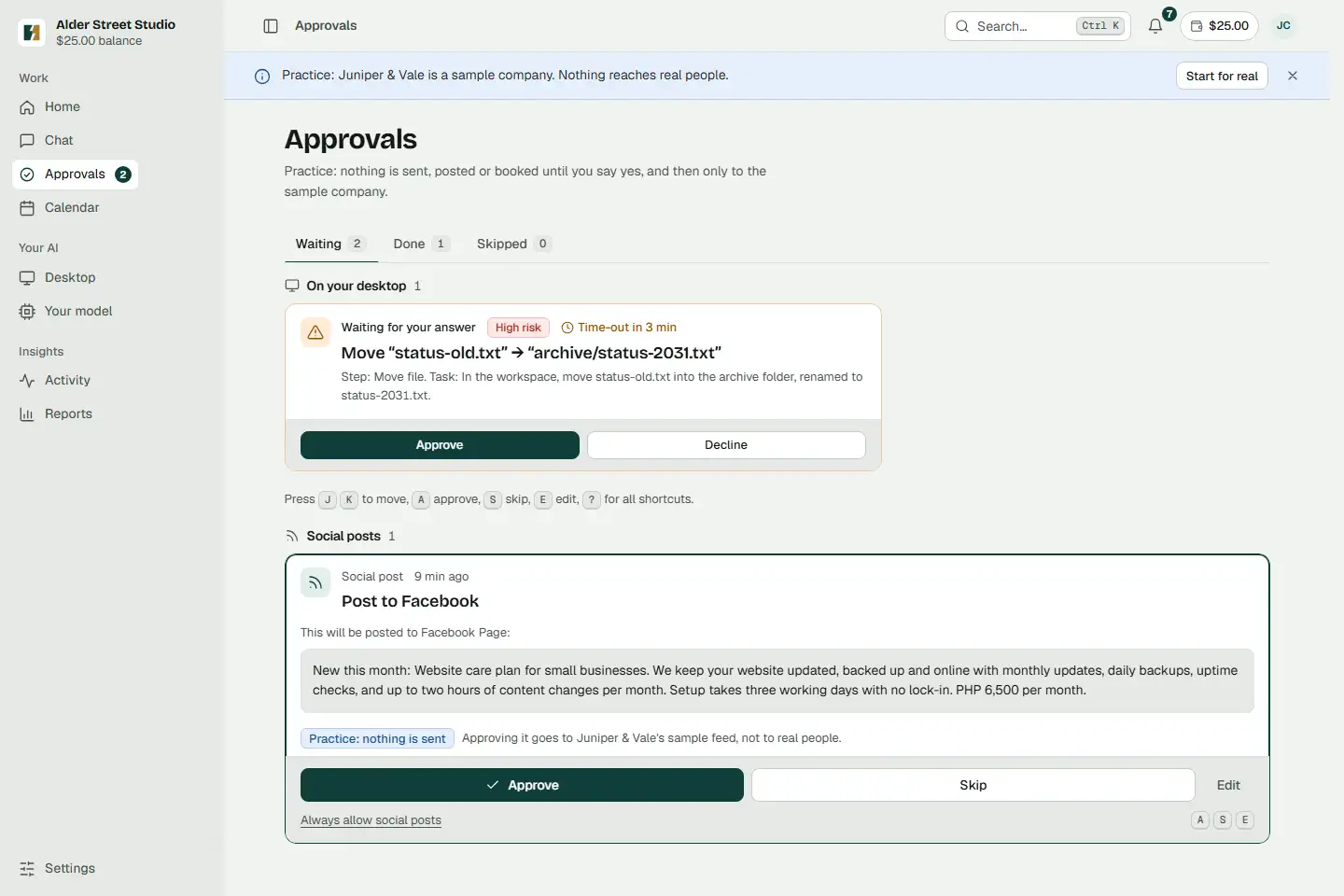
A draft waits for your yes
Anything that sends, posts or books waits in Approvals, and so does a step your AI on the desktop stops to ask about. You read exactly what will happen, then approve it, edit it or skip it.
- Waiting. Everything that needs your decision, in one list. Done and Skipped keep the rest.
- On your desktop. When your AI on the desktop reaches a step you want to decide, it stops and asks here. This one moves a file.
- The exact words. A social post draft: this is what will be posted, word for word.
- Approve. Sends it. Press A on a keyboard, or swipe right on a phone. Skip and Edit sit beside it.
- Time-out. A request nobody answers in time is stopped, and the time left is shown.
Questions about this step
What does approval mean?
With Draft only or Ask me first, nothing is sent, posted or booked until you say yes. With Act and tell me, routine tasks go out without waiting and are recorded in the activity log. You can approve, edit or skip each draft, or approve several at once.
What if nobody answers?
You can set an approval time-out. A draft nobody answers in time is stopped: nothing is sent, and the people who approve are told.
-
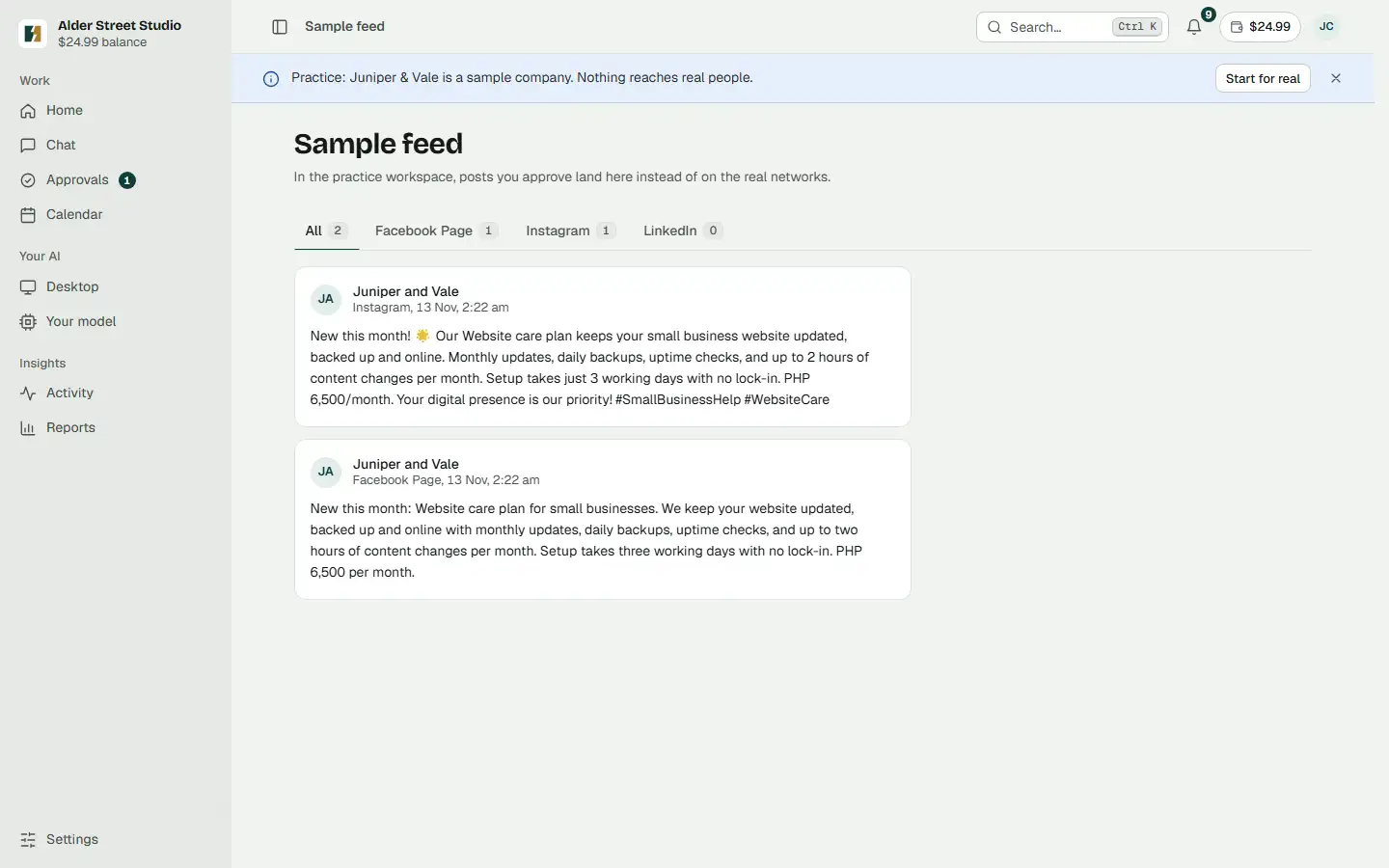
Approved, and it goes out
After you approve, the post goes out. In the practice workspace it lands in a sample feed instead of on the real network, so you can see the result safely.
- Sample feed. In the practice workspace, approved posts land here instead of on the real networks.
- By network. Facebook Page, Instagram and LinkedIn each have a tab.
- Posted as the company. Juniper and Vale, the practice company, with the network, date and time.
- The approved text. Exactly the words you saw in Approvals. Newest posts come first.
Questions about this step
Where do approved emails go in practice?
They stay inside the practice workspace too. Nothing reaches real people while you practise.
Is what I approve used for training?
Only if you switch training on. Then the drafts you approve and the edits you make are collected as examples for a model of your own. It is off unless you turn it on.
-
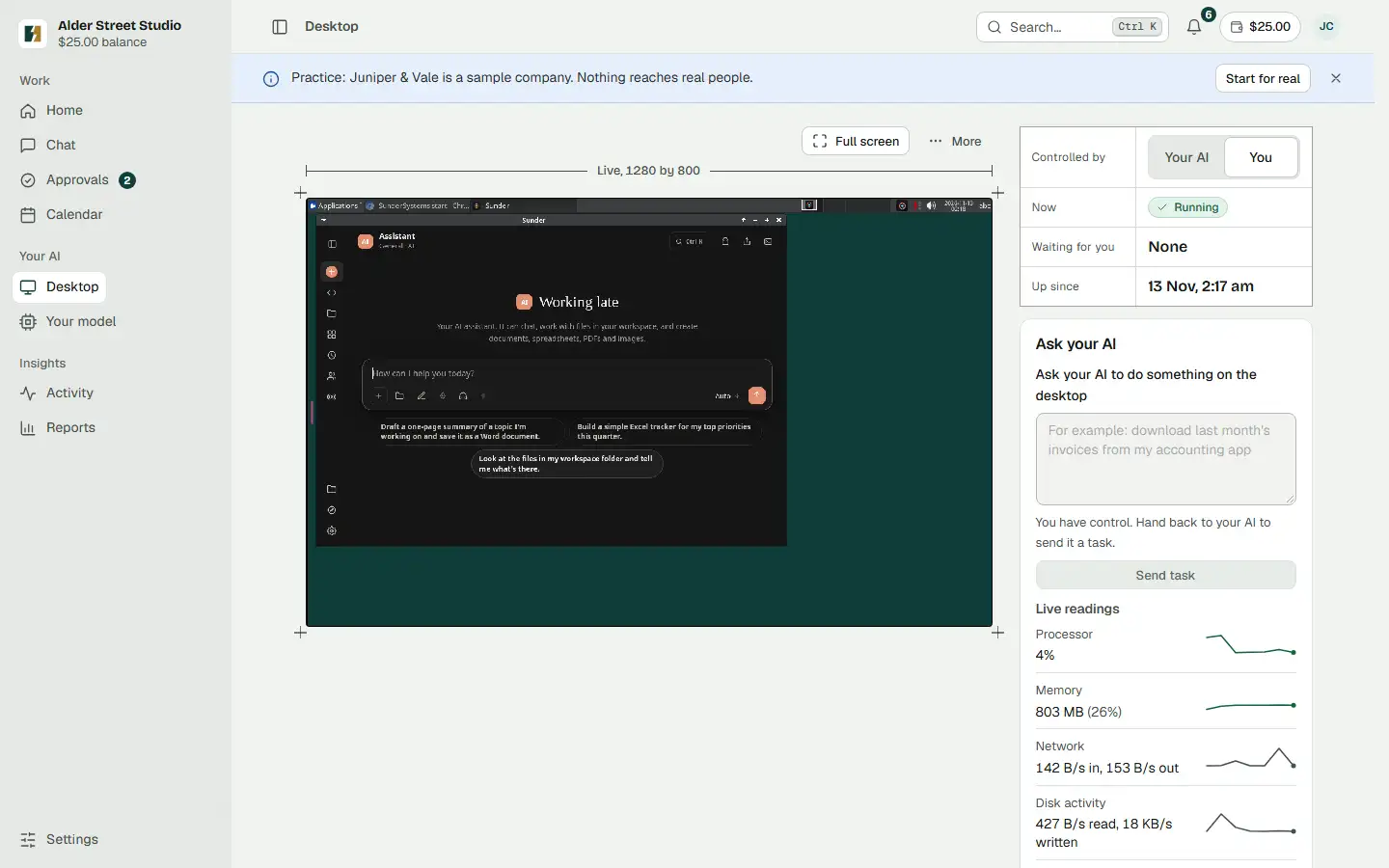
Your own private AI desktop
Each workspace can have its own private computer on SunderSystems' own hardware, where your AI works with apps and files. You can watch it, take control, or hand control back.
- Running. The desktop is up. The table above the side panel also says what is waiting for you and since when it has been up.
- Your AI or You. Who is in control. Switch to You to take over, and back to Your AI to hand control back so it can carry on.
- The live desktop. What your AI sees, as it happens. Full screen makes it bigger; More holds the rest.
- Ask your AI. Send a task to the desktop from here.
- Live readings. Processor, memory, network and disk, measured from outside the desktop.
Questions about this step
Who can open my desktop?
People in your workspace, with what their role allows. Only the workspace owner sees the controls to start, stop, restart or update it.
Where does the desktop run?
On SunderSystems' own hardware. The apps you sign in to there and the files on it stay on that private computer.
-
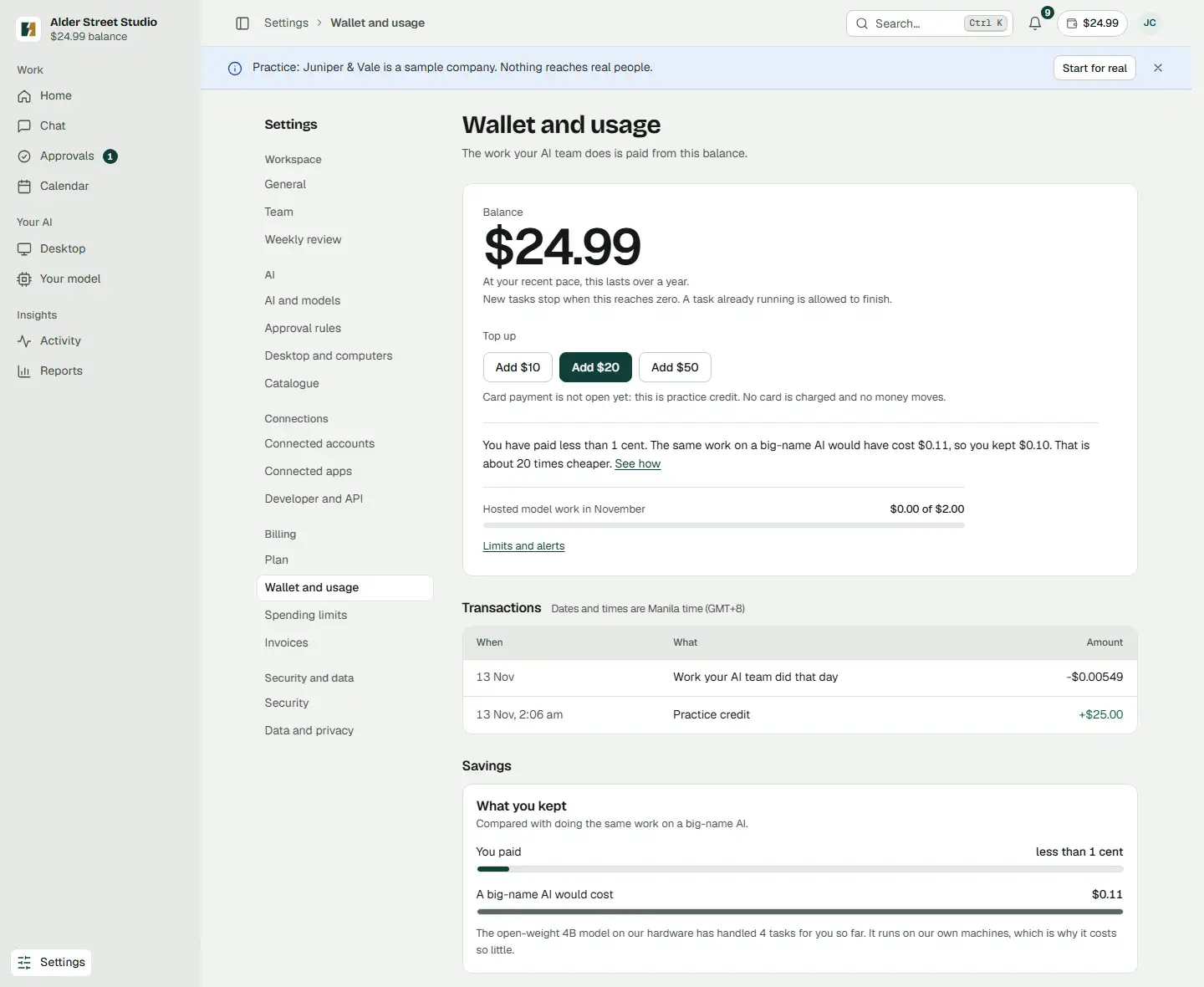
Wallet: pay for the work that runs
The work your AI does is paid from a balance. New tasks stop when it reaches zero, and every charge is listed with its date.
- Balance. What is left to spend. The line under it says how long it lasts at your recent pace.
- When it runs out. New tasks stop at zero. A task already running is allowed to finish.
- Top up. In the practice workspace this is practice credit; no card is charged.
- Transactions. Each day's work and each top-up, with its amount.
- What you kept. What the same work would have cost on a big-name AI.
Questions about this step
What does it cost?
Plans are Front office at $99 a month, Growth at $349 a month and Private from $1,500 a month. The work your AI does is paid from the wallet. Card payment is not open yet; sign-up is by invite code.
Can a task run up a big bill?
You can cap it. Set a budget per task and a limit for each person; that is the next step.
-
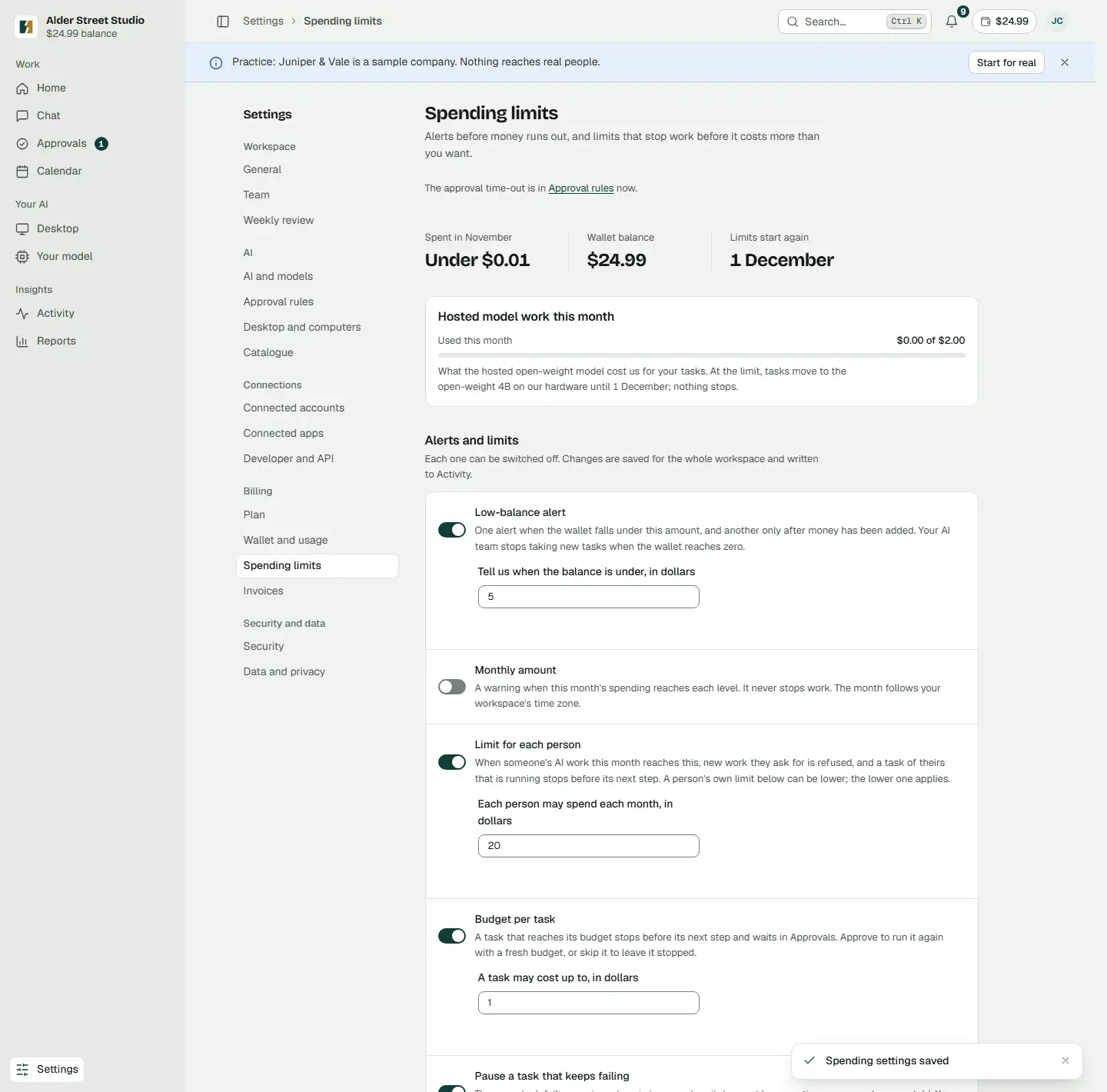
Spending limits stop work before it costs too much
Alerts and limits for the whole workspace, each one easy to switch off. Changes are saved for everyone and written to Activity.
- This month. What has been spent, the balance, and when the limits start again.
- Low-balance alert. Tells you when the wallet falls under the amount you choose.
- Limit for each person. When someone reaches it, new work they ask for is refused.
- Budget per task. A task that reaches it stops before its next step and waits in Approvals.
- Approval time-out. This lives in Approval rules now: if nobody answers a draft in time, nothing is sent.
Questions about this step
What happens when a limit is reached?
A person at their limit cannot start new work, and their running task stops before its next step. A task that hits its budget waits in Approvals: approve to run it again with a fresh budget, or skip it.
Who can change the limits?
The people whose role allows it. Every change is saved for the whole workspace and written to Activity.
-
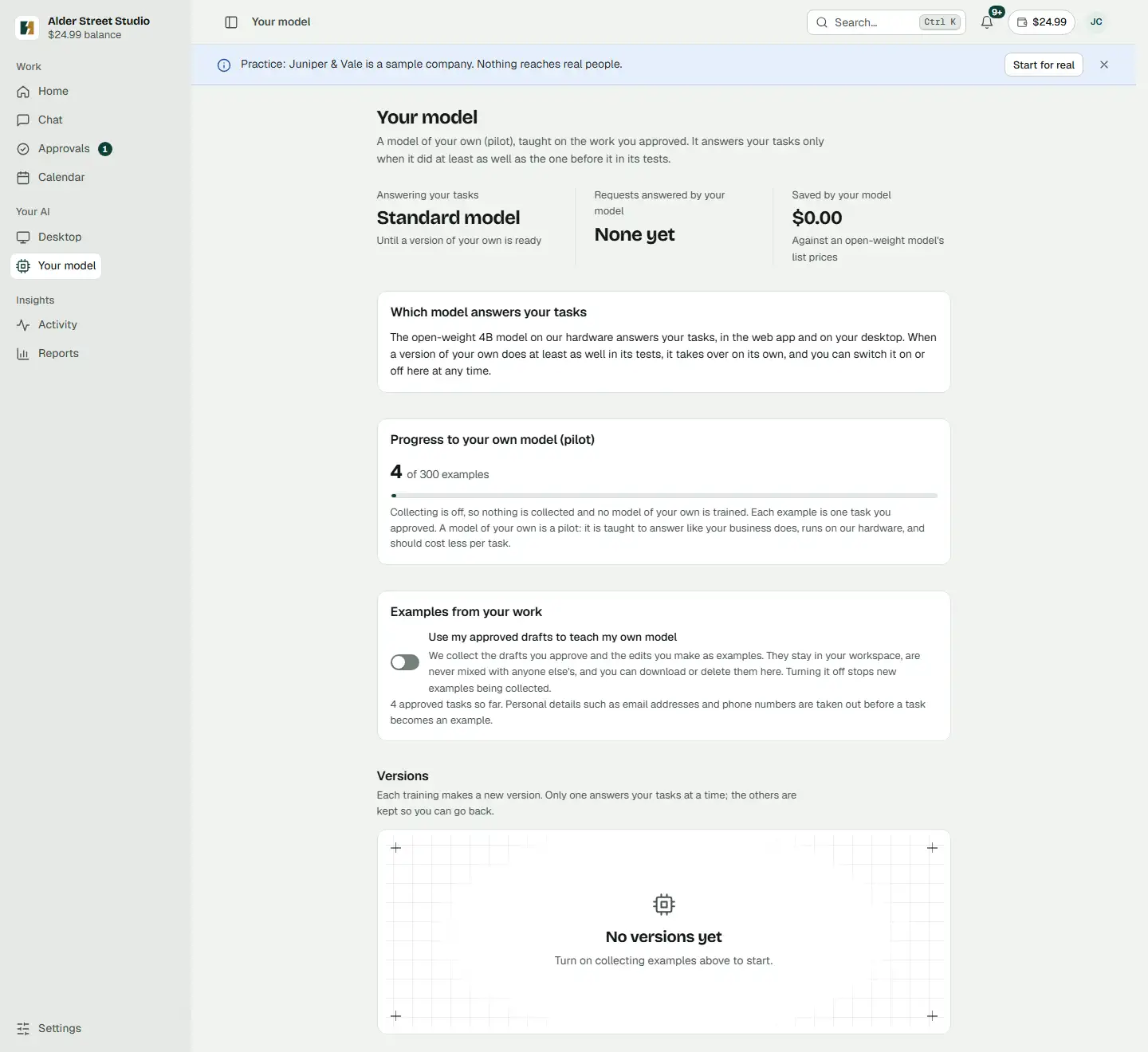
Your own model, only if you switch training on
In the web app, chat and tasks in new workspaces start on a larger open-weight model through OpenRouter, and fall back to the untuned 4B model on our hardware when that route is not available, when the wallet holds no real money or when the plan’s monthly model cap is reached. The AI desktop agent runs on the 4B model on our hardware, or on your own model once one is delivered. With training on, your approved work becomes examples for a model of your own, which answers your tasks only once it does at least as well in its tests.
- Who answers today. The standard model, until a version of your own is ready.
- Which model answers. A version of your own takes over only when it does at least as well in its tests. You can switch it on or off here.
- Progress. How many approved tasks are counted toward a first version of your own.
- Training switch. Off unless you turn it on. Your examples stay in your workspace and are never mixed with anyone else's.
- Versions. Each training makes a new version. This workspace has none yet.
- Why the 4B answers here. A practice workspace has no real money in its wallet, so its tasks fall back to the 4B on our hardware. A workspace with real credit starts on a hosted open-weight model through OpenRouter and can choose the 4B in Settings, AI and models.
Questions about this step
When do I get my own model?
Training is opt-in. Once you switch it on and enough of your approved work is collected, a model of your own is trained and takes over only if it does at least as well in its tests. No client's own model is live yet.
Who can see my data?
Your workspace's records are stored on SunderSystems' own hardware, and your private AI runs there too. Training examples stay in your workspace, have email addresses and phone numbers taken out, and are never mixed with anyone else's.
-
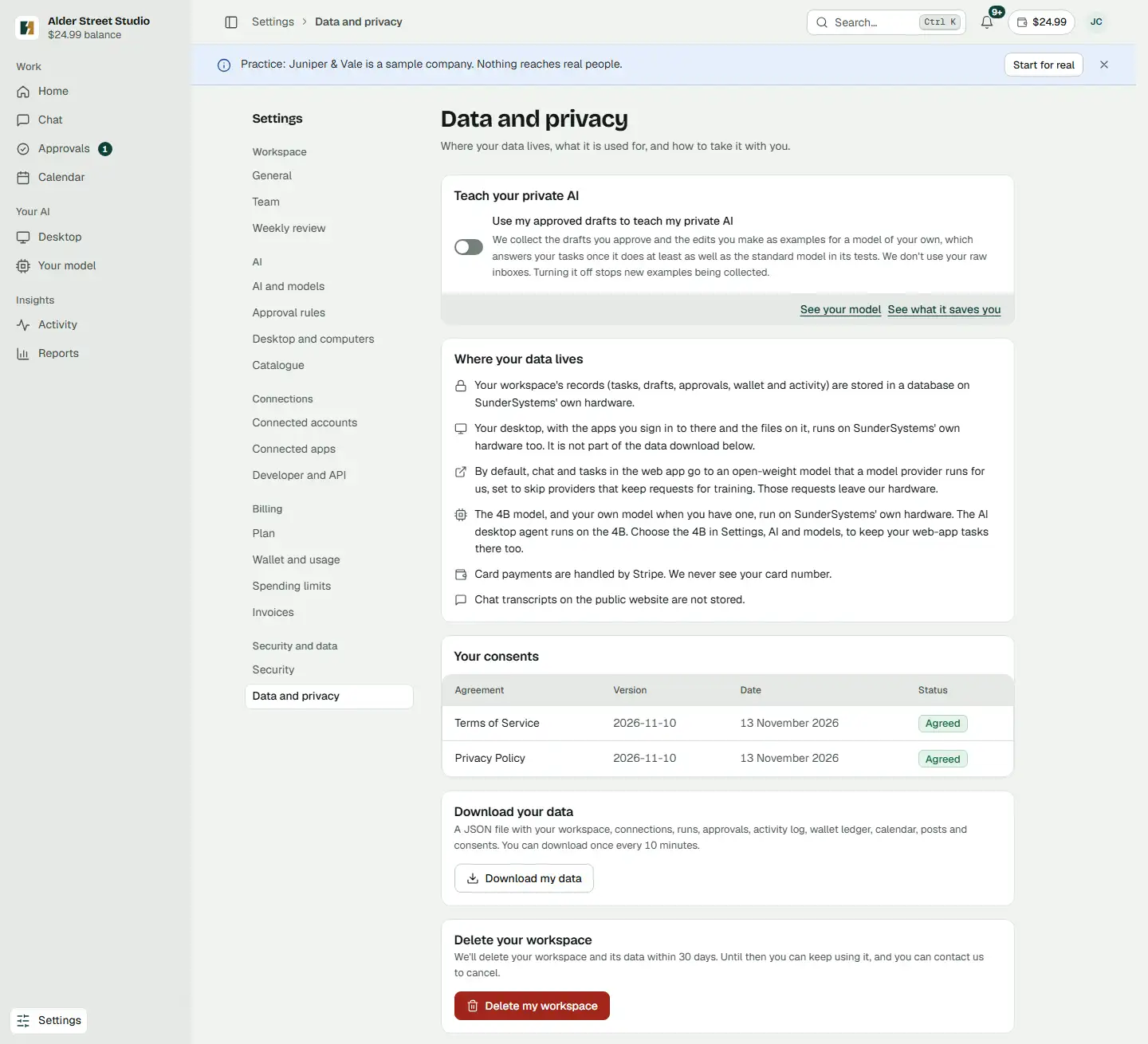
Export or delete your data at any time
One page says where your data lives and what you agreed to. You can download your data as a file or ask for the whole workspace to be deleted.
- Teach your private AI. The same training switch as on Your model.
- Where your data lives. Records, the desktop and the 4B model run on SunderSystems' own hardware. Web-app chat and tasks may go to a hosted open-weight model through OpenRouter.
- Your consents. Which terms you agreed to, which version, and when.
- Download my data. A JSON file with your workspace, runs, approvals, activity, wallet, calendar, posts and consents.
- Delete my workspace. We delete it and its data within 30 days; copies in our backups age out within about ten weeks. You type the workspace name to confirm.
Questions about this step
Can I take my data with me?
Yes. Download my data gives you one JSON file. You can download once every 10 minutes.
How do I delete everything?
Press Delete my workspace and type its name. We delete the workspace and its data within 30 days. Copies in our backups age out within about ten weeks.
Ready to try it?
Sign-up is by invite code until payments open. Request an invite and we will email you a code, or register if you already have one. Your workspace starts on an open-weight model and a practice company, so nothing reaches real people while you learn.